Add earlier workouts
Garmin sends the hosted connector new workouts after you connect. It does not send your earlier history. If you want those workouts in your totals, you can import their summaries once. If you use the personal server on your computer, skip this guide. It can search your Garmin history directly.
1. Get your file from Garmin
If you already have an export, skip to step 2. Otherwise, the activity list is the simplest choice for workout counts, time and distance.
- On your computer, sign in to Garmin Connect Activities. Open Activities, then All Activities.
- Clear any sport filter if you want every activity type. Scroll until you see the oldest workout you want. The CSV contains the activities in the list.
- Select Export CSV. Keep the file as downloaded so a spreadsheet does not change its dates or units.
See Garmin’s screenshot of Export CSV. For last year’s totals, scroll back to January of that year before exporting. A missing month in the file is not proof you did no workouts.

One workout or an account archive
For one workout, open it in Garmin Connect. Select the settings gear, then the option to export the original file. A FIT file contains the recording from your device.
For an archive, open
Garmin Account Data Management. Select Export Your Data, then Request Data Export.
Use the download link Garmin emails you. If your ZIP is too large, unzip it on your
computer and look under DI_CONNECT for the uploaded activity files. You can
also use the activity list CSV instead. For a multisport recording with several sessions
in one FIT file, use the CSV. The FIT importer reads single-session workouts.
Garmin's export instructions cover each option.
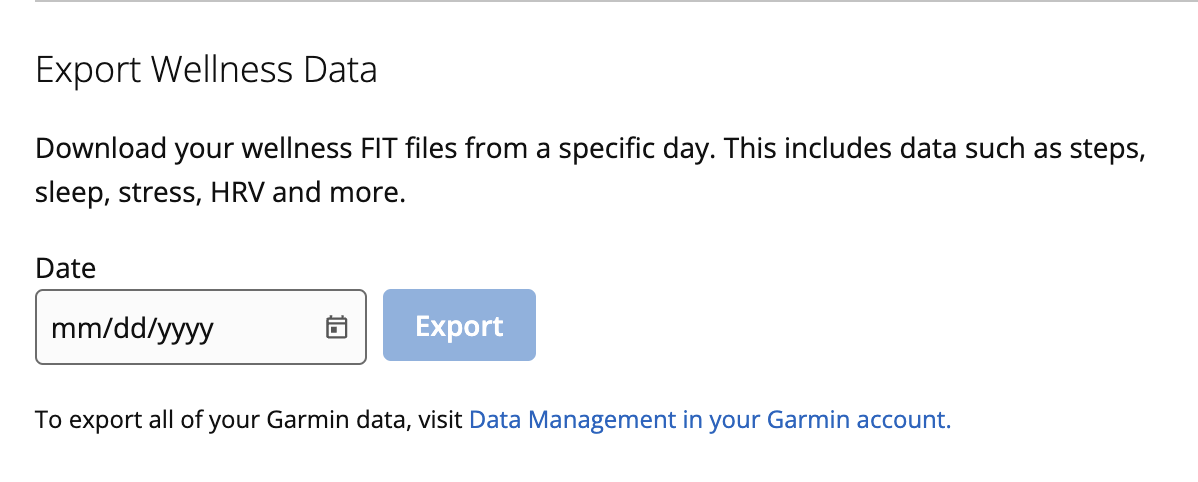
Seeing “Export Wellness Data” instead?
The Garmin Account Information page exports wellness readings for one day, not your workouts. Use Activities for workout history. For the whole account, follow the Data Management link below Garmin’s date picker.
2. Bring the file back to Fitness Chat
You can preview up to 500 workouts at a time. The limit is 8 MiB for CSV files and 5 MiB for FIT or ZIP files. If a CSV has more workouts, export a smaller date range or split the CSV and keep the column headers in each file.
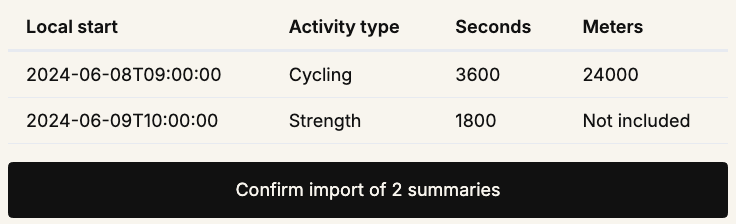
Sign in to preview your file with the Garmin account you already connected to Fitness Chat. Drop the file on the file picker or select it from your device. For a CSV, select the distance units shown in Garmin Connect. Submit the file for preview. The server reads the file but does not keep it. Use an activity CSV rather than an account archive if you do not want to send unrelated data. Check the dates, distances and number of workouts in the preview.
3. Import and check a total
If the preview is correct, confirm the import. Only workout summaries are added to your account. These include the local start time, activity type, duration and available distance. This import does not add GPS tracks, sleep history or heart rate samples.
Check how many workouts were added or skipped. In your AI app, ask “Which workouts do you have for last October?” Compare a known workout with Garmin Connect before relying on a yearly total. An import covers the records in your file, not necessarily your whole account.
Why was a workout skipped?
We skip repeated local start times and dates that could overlap with automatic syncing, including the cutoff day. Some FIT files do not include a usable local time. Try the activity CSV if a session is missing from your preview.